
The short answer
Our client portal is a private site each client signs in to. It answers the three questions owners ask after launch: is my site working, what is the studio doing, and how do I ask for something? So it shows the site’s visitors, where they came from and how fast it loads; every finished job, with a line on what it did; and each request, with where it stands.
Every screen on this page belongs to Brightwater Plumbing & Heating, our sample client. The business is made up and so are its numbers, which lets us show every screen without showing a real client’s.
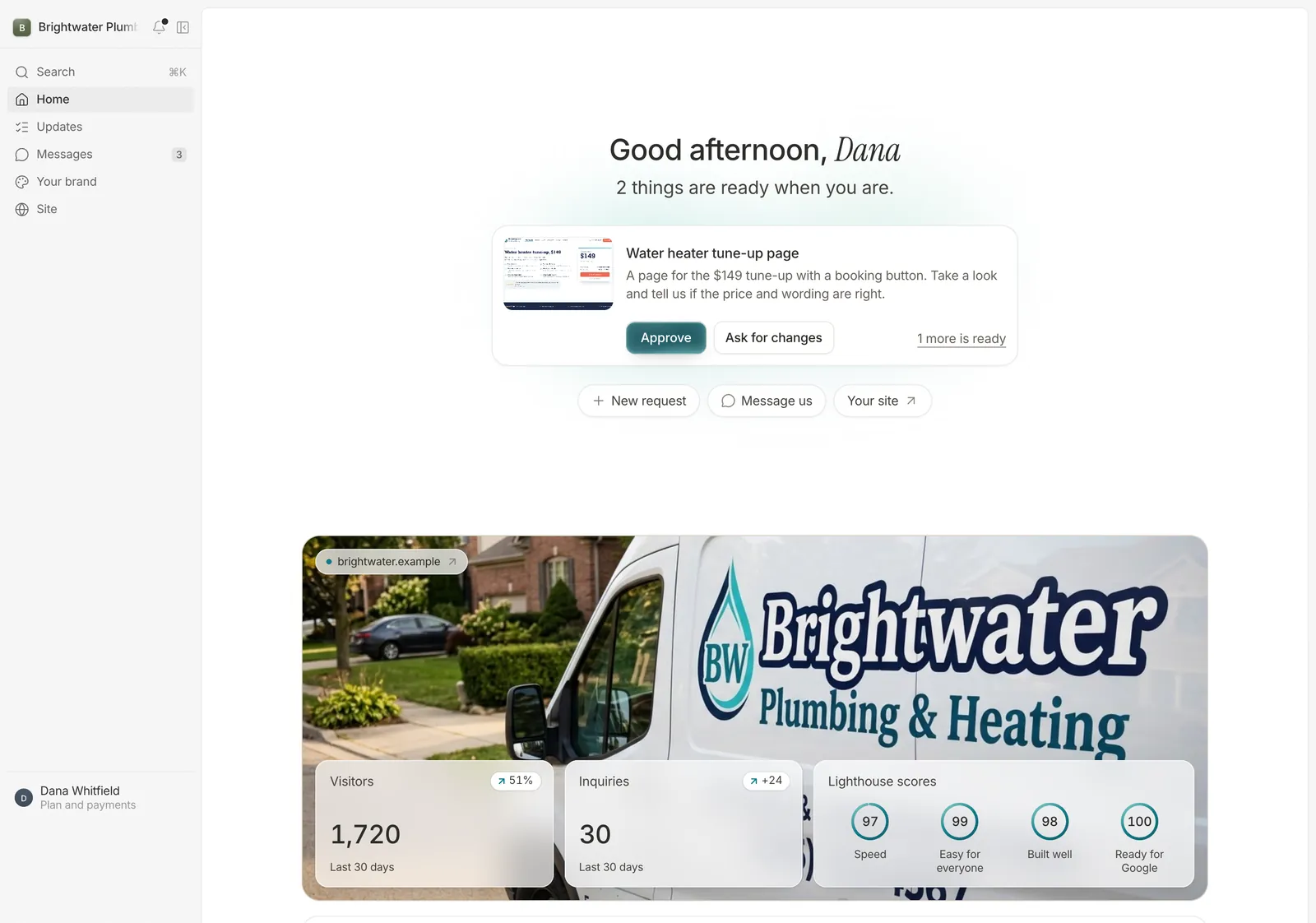
What do I see when I sign in?
A greeting, one line on what’s ready for you, and your own site’s photo with the month on it. Anything ready for you to look at sits in the middle as one card: Approve, or Ask for changes. Under it, three quiet buttons start a request, open your messages or open your site.
On the photo: visitors and inquiries for the last 30 days, each with its change, and the four Lighthouse scores (Google’s free test of a page) named in plain words: Speed, Easy for everyone, Built well, Ready for Google. You shouldn’t have to read a paragraph to know how the month went.
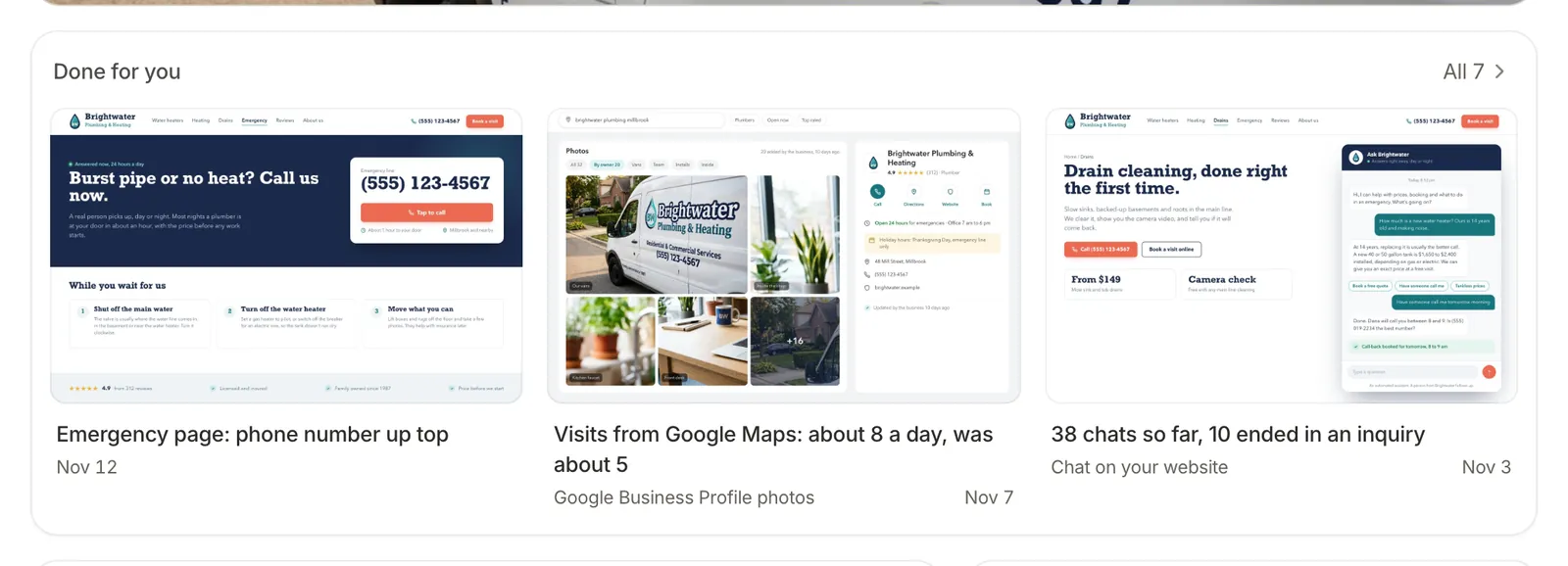
Under the photo is Done for you: the last three things we finished, each with its picture and what it did. Once a site is live, this takes the place of a progress bar, because a full bar tells you nothing and finished work tells you plenty.
On a phone, the same portal puts its places in a bar at the bottom, within reach of your thumb, with a + for a new request.
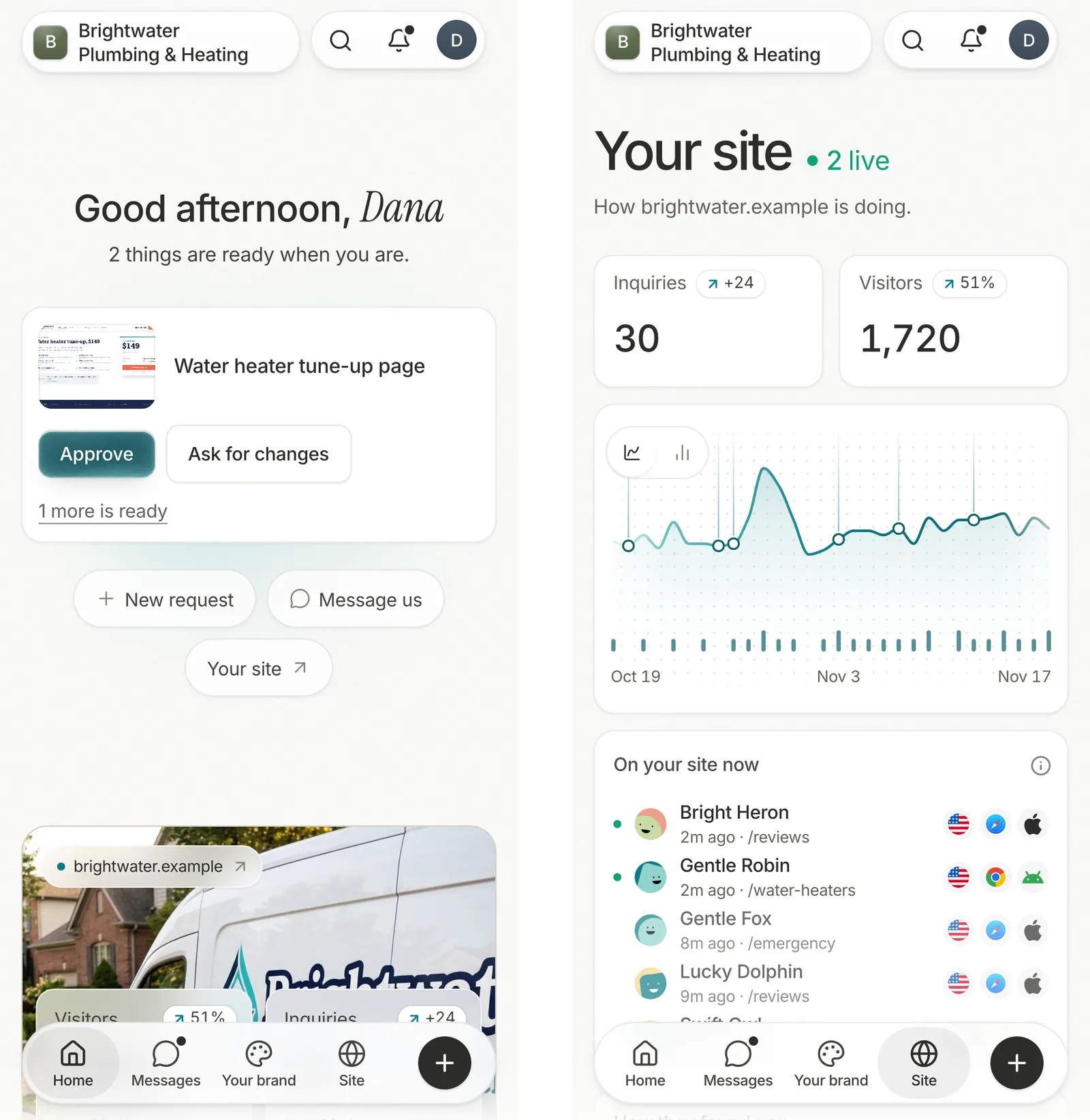
Is my site working?
The Site tab answers that in one screen. First visitors and inquiries for 30 days, then the month as one chart: the line is visitors, the small marks along the bottom are inquiries, and each ring on the line is a day we finished something. Below it: who’s on the site now (each with a made-up name for the day), how people found you, which AI tools read your pages, where visitors are, the scores and what we did this month.
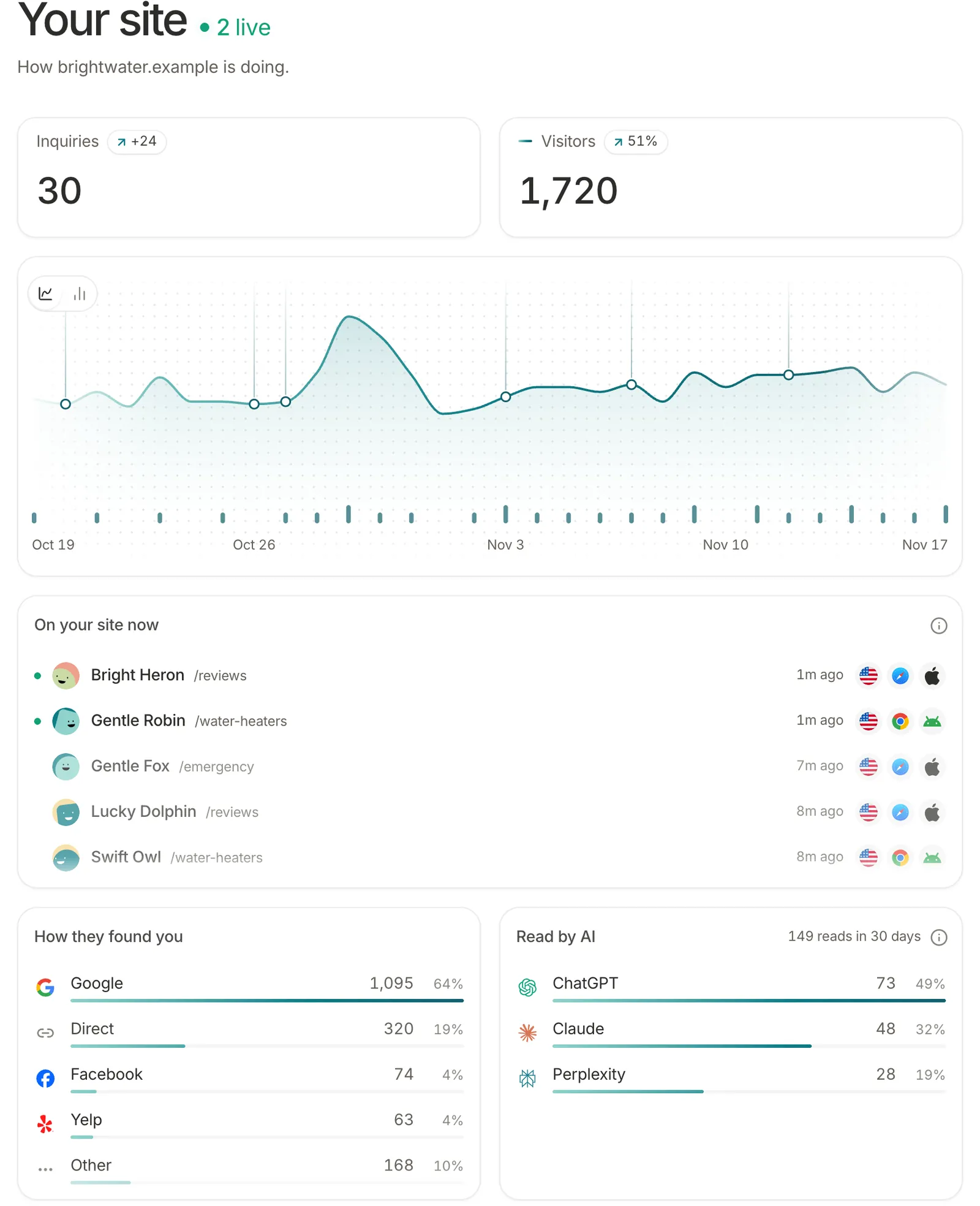
Small numbers swing, so the portal doesn’t dress them up. Say inquiries went from 2 to 4: that’s up 100%, which is true and tells you nothing. So when the count before was under 20, a change shows as a plain difference (“+24”). That’s why inquiries above read +24 and visitors read 51%. For more on what those AI readers are, see which AI crawlers visit your website.
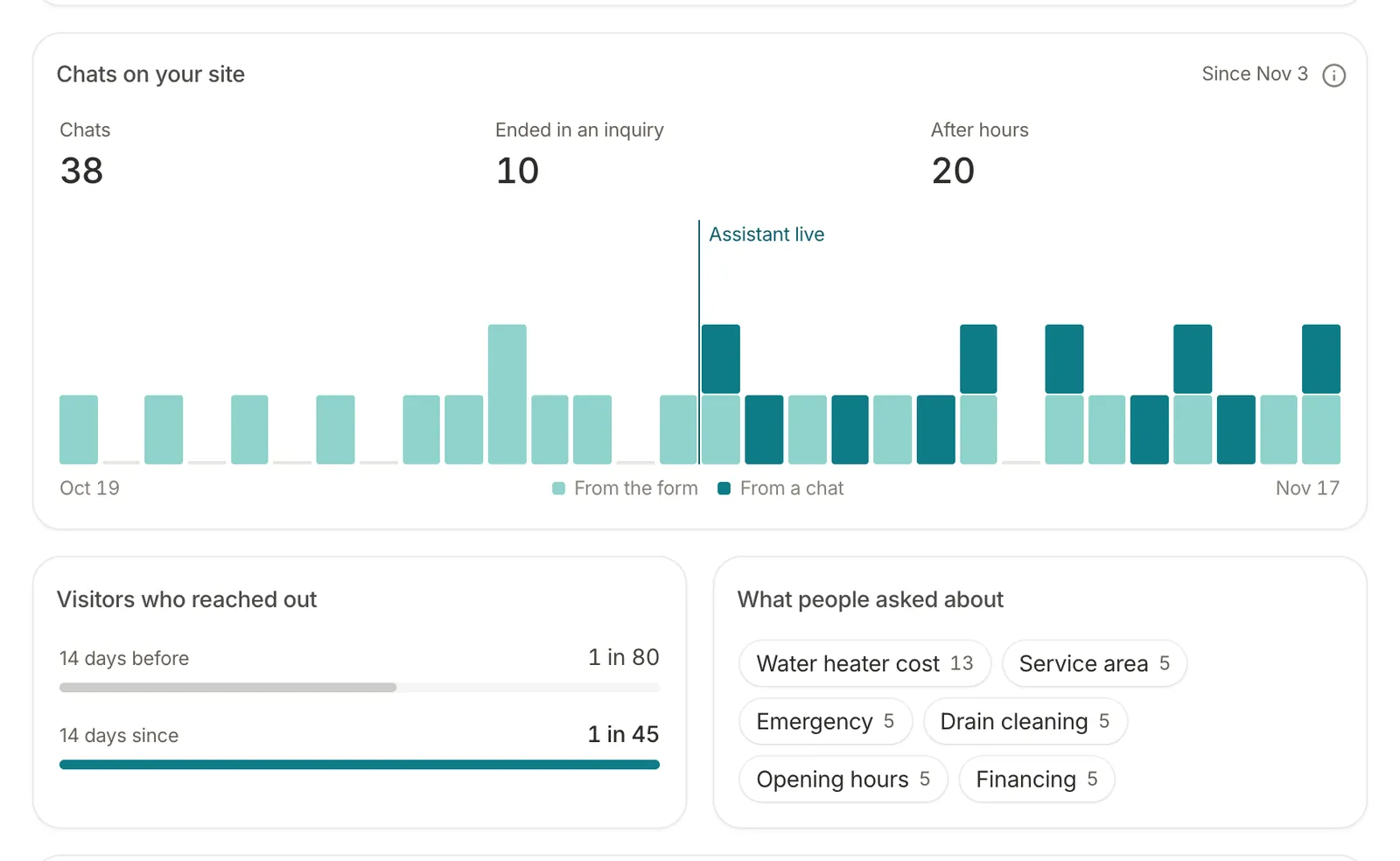
Extra services each get a card on Home and a block here, seen only by a client who has that service: no greyed-out upsells. A client with a chat assistant on their site would see the block below: chats, those that ended in an inquiry, and visitors who reached out before and after it went live. Brightwater has every service so we can show them all; a real client sees only the ones they have.
How do I ask for something?
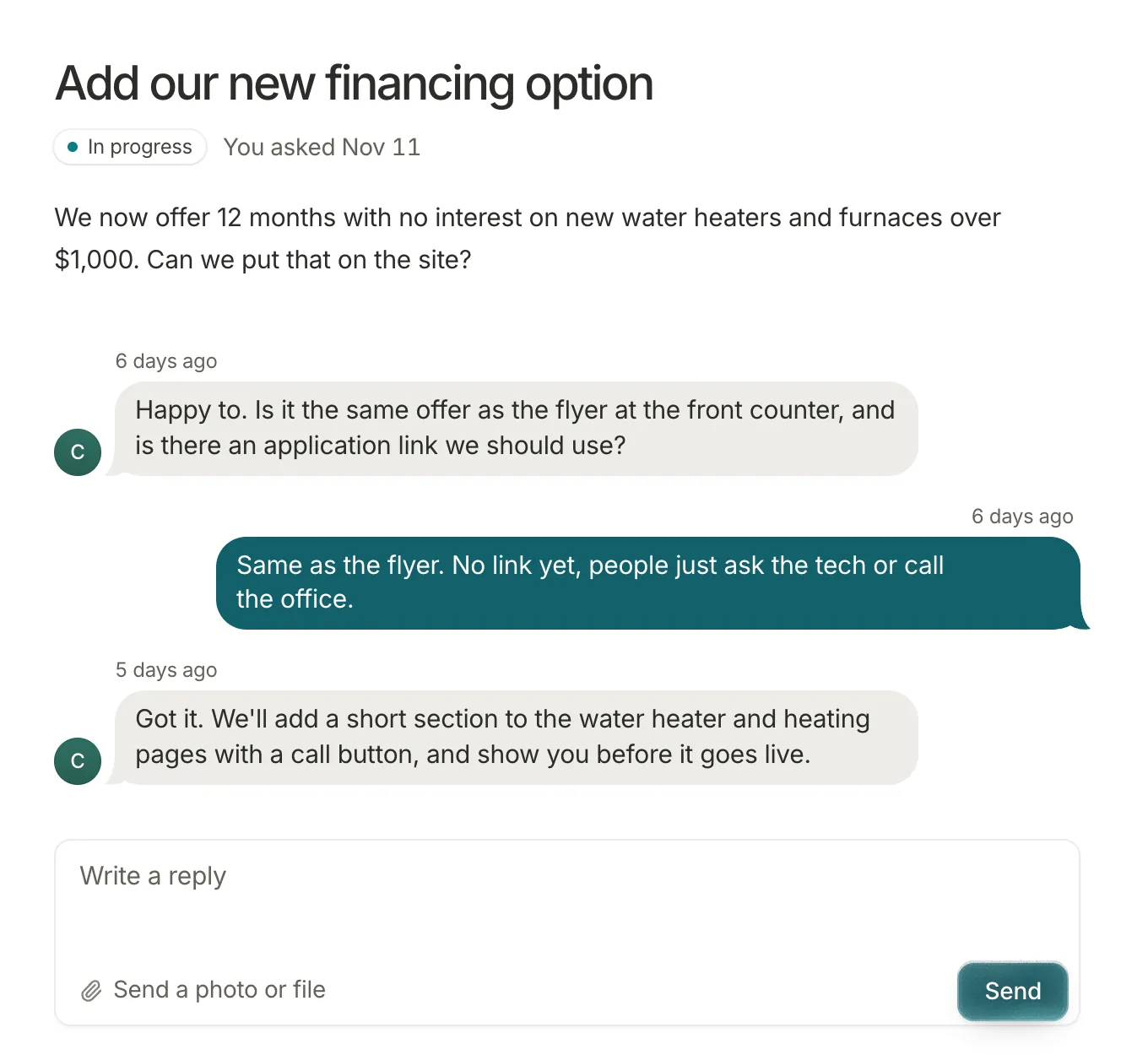
Press New request, on any page. Say what you need and pick when: no rush, a day, or urgent. Each request gets its own page with what you asked, a status, and a thread for the back and forth. Behind the small “i” it says: “We get an email when you send a request, and we write back within a business day.”
A request moves through five plain states: New, In progress, Waiting on you, Done and Cancelled. Each move adds a line to its thread, so the request carries its own history. You can edit or withdraw it until we start, and if one is waiting on you, your reply moves it back to In progress by itself.
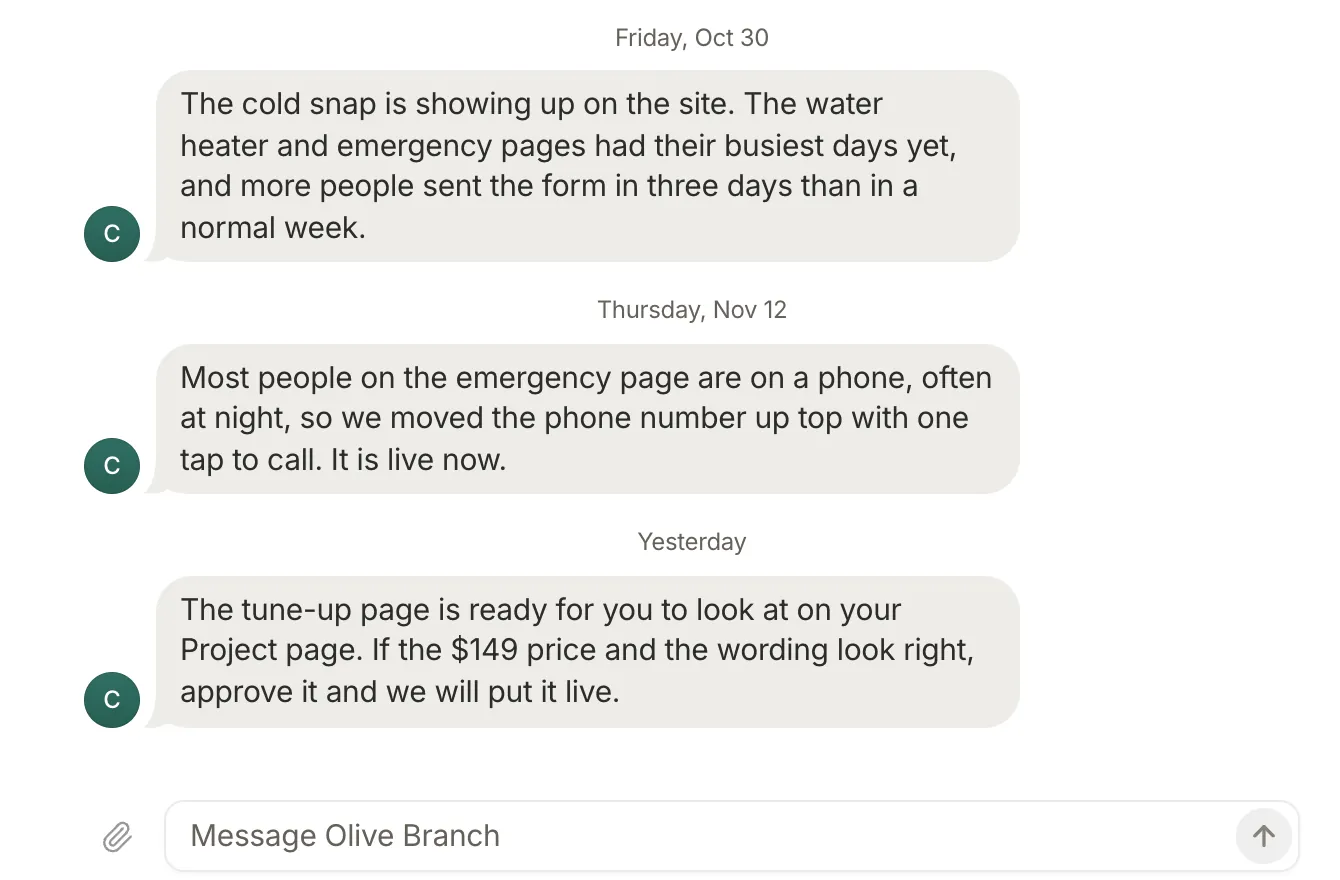
Everything else goes in Messages: one conversation with the whole team, with photos and files if you like. When either side writes, the other gets an email, so nobody has to keep checking.
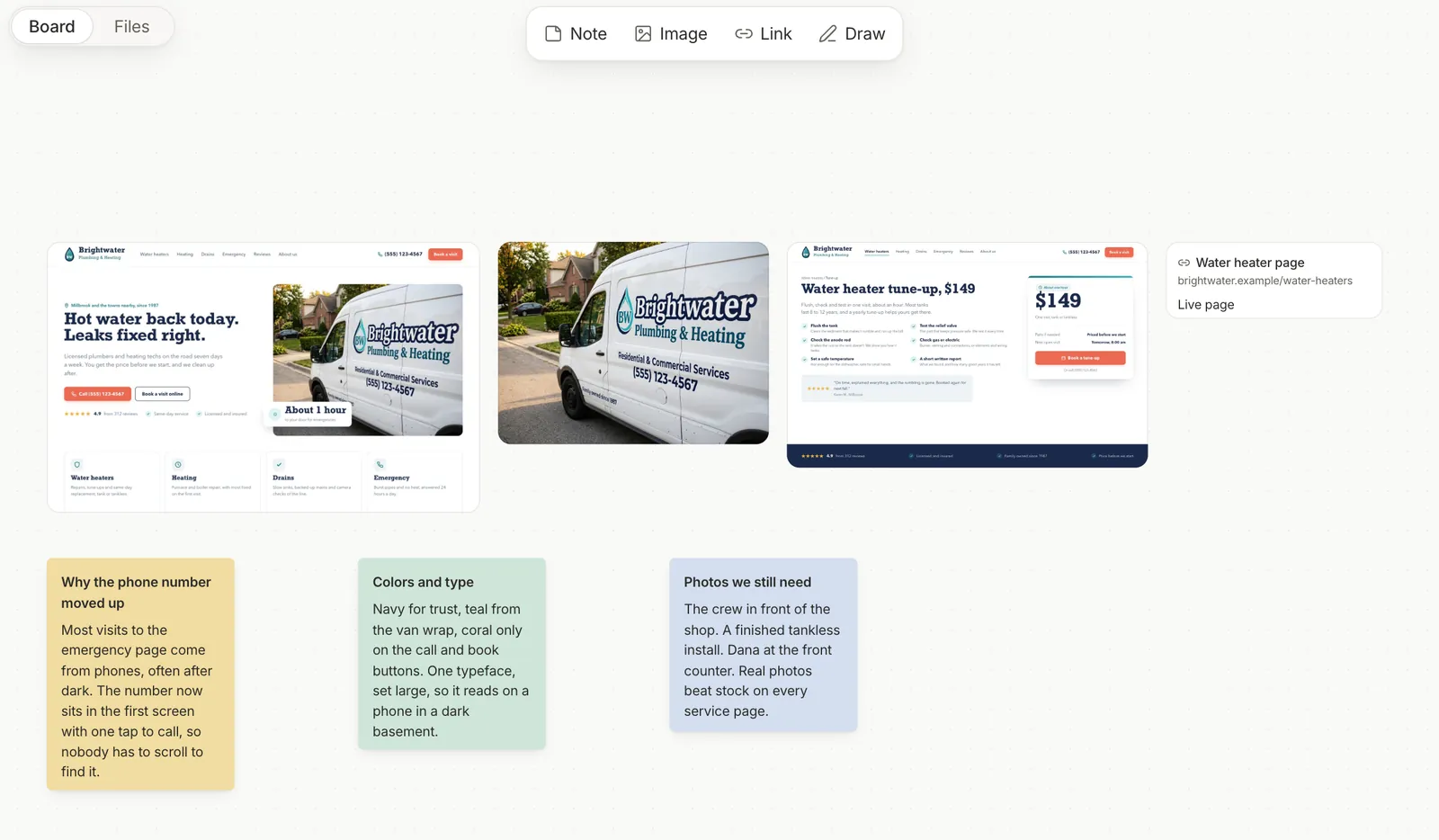
Under Your brand there’s a board, an open canvas for notes, pictures, links and quick drawings that both sides add to, and your files beside it. It beats a photo buried in a text from last month.
Every finished job says what it did
Updates is the whole project on one page. First, anything ready for you to look at, with a picture: Approve finishes it, and Ask for changes opens a request with its own thread. Then what’s up next, then everything done.
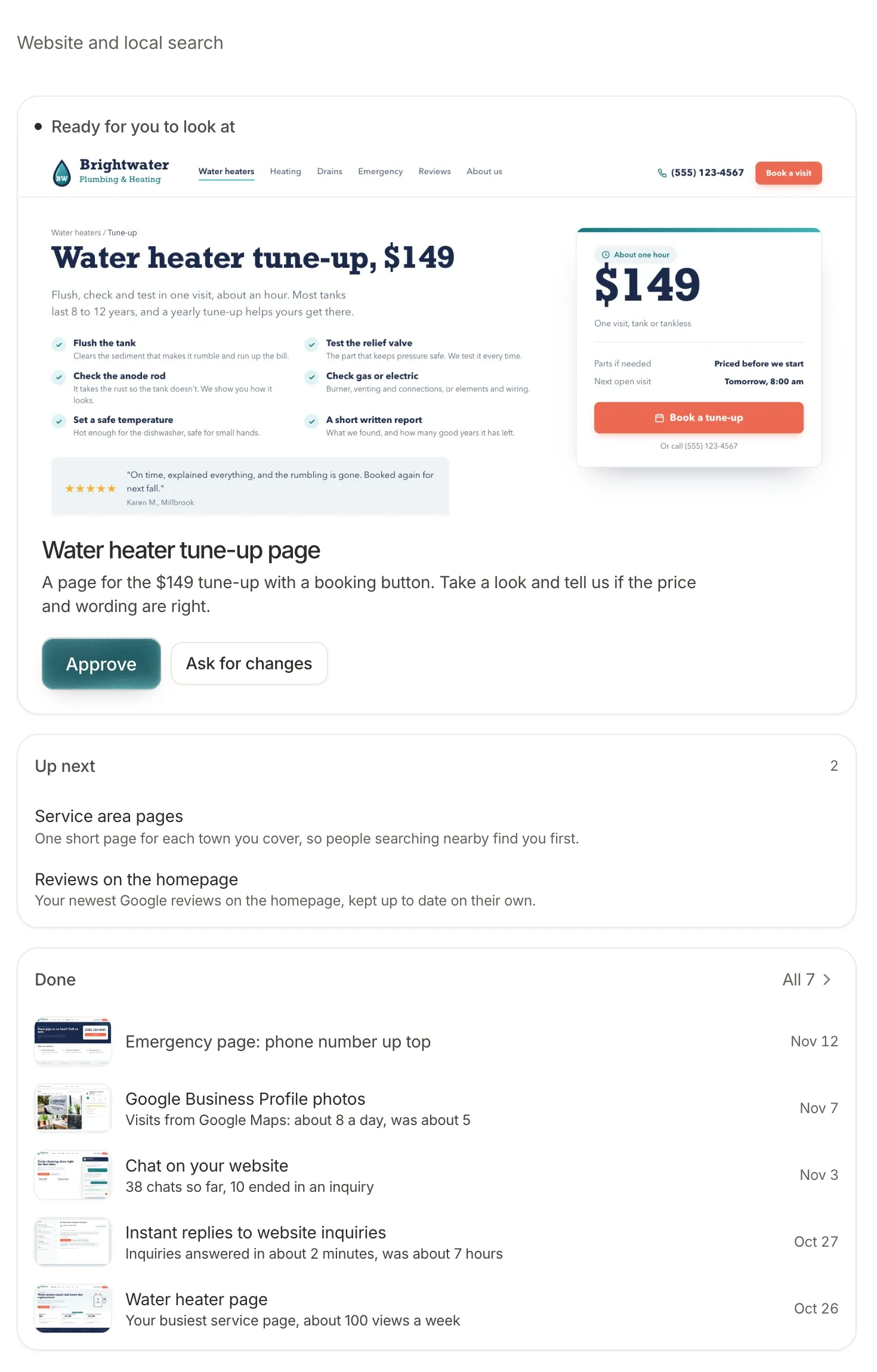
Each finished job carries one line on what it did, at most 140 characters. The line says what the numbers show, never why, because we can’t prove a cause from a chart and won’t pretend to. A person writes or checks every line, and the newest job here has none yet on purpose: under a week of numbers says nothing.
The numbers behind it
These are counts from the portal’s own code, taken on 17 November 2026. They describe the product, not anyone’s results.
| What | Number | Detail |
|---|---|---|
| Places in a client’s portal | 5 | Home, Updates, Messages, Your brand and Site |
| States a request moves through | 5 | New, In progress, Waiting on you, Done, Cancelled |
| Lighthouse scores shown | 4 | Checked weekly, phone and computer; each check runs three times and keeps the middle one |
| AI crawlers our counter knows by name | 40 | Of 69 crawlers on its list; matched by the name they announce, so a trend, not proof |
| Finished jobs on Home | 3 | The newest; the rest are on Updates |
| Where a percentage stops | Under 20 | Below 20 in the period before, a change shows as a plain difference |
| Languages | 2 | English and Spanish; each person picks theirs |
And seven things a client can do there without writing a single email:
- Approve a piece of work, or ask for changes to it.
- Send a request, and say when it’s needed.
- Reply in a request’s thread.
- Edit or withdraw a request until we start on it.
- Message us, with photos or files.
- Add notes, pictures, links and drawings to the board.
- Add files.
What this means for your business
Every client gets a portal like this, whatever we build for them. We look after what we make for as long as you like, and this is where that work happens in the open: what we did, what it did and what’s next, without you having to ask. For how that compares with hiring an agency, see Olive Branch or an agency.
Under the hood
- Each client’s records are walled off in the database itself: on every read, it checks who’s asking (row-level security). Notes the team keeps on a request never reach a client’s browser.
- Sign-in is by invitation only, with a link or code sent to your email.
- Visits come from our own counter script, under 2 KB, rather than a third-party analytics tag.
- Each kind of record lists its states once in the code, and our pre-release check fails if a list is retyped elsewhere.
- The sample client sends no email and stays out of the team’s views across clients. The team works from the same portal, on its own side.
What we’d do differently. We built the service cards before the jobs that fill them, so for now they run on sample numbers only. The Site tab counts inquiries and AI readers only on sites under our own domain so far; a client’s site needs one more piece we haven’t built. And messages refresh every 20 to 30 seconds instead of arriving instantly. That’s the first thing we’d change.
Questions
Who can see my portal?
You, the people you ask us to invite, and our team. Sign-in is by invitation only, and the database hands a portal’s records only to people who belong to it.
What if I’d rather just email you?
That works. When we write to you in the portal or reply on a request, you get an email about it. If you email or call with a request, we can add it to your portal ourselves, so it still gets its page and its status.
Can my staff have their own logins?
Yes. We invite each person by email, and each signs in with their own address. Everyone we invite to your portal sees the same portal you do.
What happens to it if we stop working together?
Your website is yours from the first day, and if you’d rather take it from there yourself, we hand it over cleanly; who owns your website covers what to check.